
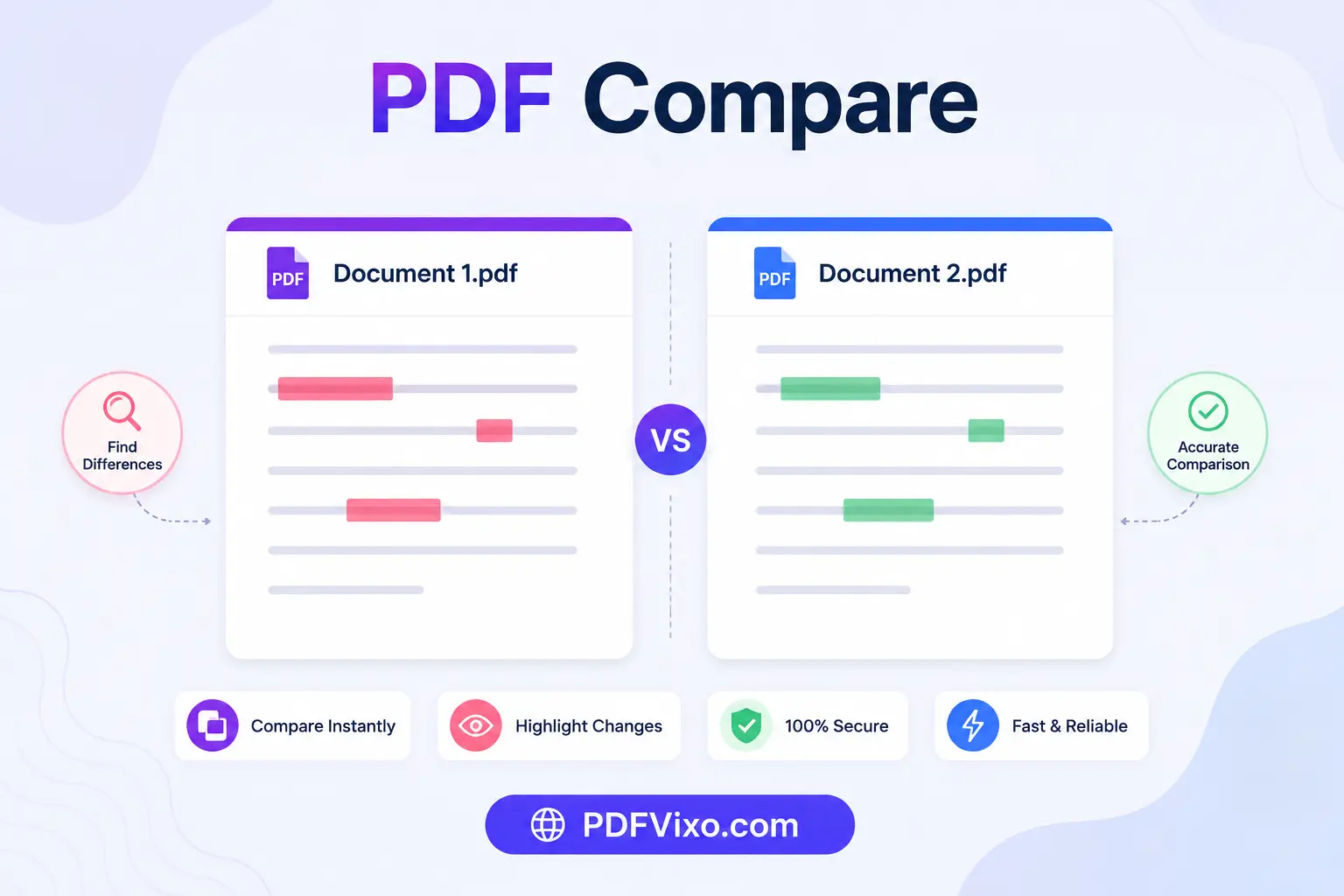
Working on different versions of the same PDF, especially in a professional environment it is difficult to keep the track of the file changes. If you are updating a contract, reviewing a report, checking an assignment or editing a business document you can miss a small change. A compare PDF tool can help you compare two PDF files in just a few simple steps. Simply uploading both the documents and the comparison process will identify the differences so you can review them more quickly and easily. This saves time and helps you to make sure you are working on the correct version of your document. Plus,there is no need to read every page manually and you can focus only on the sections you have changed.
Why Compare PDF Files?
Comparing PDF files helps you review document updates with precision and confidence. Instead of checking different files line by line you can make mistakes and you can miss a change. The comparison process is useful when you need to:
Review updated contracts before approval.
Check changes in reports or proposals.
Compare invoices or financial documents.
Review edited assignments or research papers.
Verify updates before sharing or printing a file.
Keep track of different versions of the same document.
What Can You Compare?
The PDF Compare tool can help you identify different types of changes between two PDF files. This makes it easier to understand what has changed without comparing each page yourself. Depending on the document, you may be able to review changes in:
Text
Images
Tables
Graphics
Formatting
Page layout
Page order
How to Compare Two PDF Files
Comparing PDF files is simple and only takes a few steps.
Upload the original PDF file.
Upload the updated version of the PDF.
Start the comparison.
Review the highlighted differences between both documents.
Download the comparison report if this option is available.
Compare Text and Visual Changes
Different documents require different types of comparison. That is why this page supports more than one way to review changes.
Text Comparison
Text comparison highlights words and sentences that have been added, removed or updated in the document. It is useful for contracts, reports, policies, manuals, assignments and other text based documents.
Visual Comparison
Visual comparison focuses on how the document looks. It can help you identify changes in images, tables, graphics, logos, page layout and other visual elements. This is useful for brochures, presentations, forms, drawings and design documents. Using the right comparison method helps you review documents more accurately and reduces the chance of missing important updates.
Why Use Our PDF Compare Page?
Our PDF Compare page is designed to make document review simple and efficient.Some of the benefits include:
Compare two PDF files in a few simple steps.
Review documents changes more quickly.
Save time when working with multiple versions.
Reduce the chance of missing important edits.
Work directly from your web browser.
Use the page on desktop, tablet, or mobile devices.
No technical knowledge is required.
Simple interface that is easy for anyone to use.
When Should You Compare PDF Files?
Comparing PDF files is helpful whenever you have more than one version of the same document. Instead of trying to remember what was changed, you can review the differences in a clear and organized way. Our PDF Compare page is useful for many situations, including:
Business Documents
Compare reports, proposals, presentations and company documents before sharing them with clients or team members.
Contracts and Agreements
Review updated contracts to make sure important details such as names, dates, prices and terms have not changed unexpectedly.
Invoices and Financial Records
Compare invoices, quotations, and financial documents to confirm that the information is correct before approval or payment.
Assignments and Research Papers
Students, teachers and researchers can compare revised documents to check edits and review updates more efficiently.
Marketing Materials
Compare brochures, flyers, posters and other marketing files to make sure the latest design and content are being used.
Technical Documents
Review manuals, instructions, policies and other technical documents before publishing the final version.
Compare Scanned PDF Files
Some PDF files are created by scanning paper documents. These files often contain images instead of selectable text. If your PDF is scanned, the comparison may not be as accurate because the text cannot always be read correctly. If OCR is available on our website, you can first convert the scanned document into searchable text. After that, compare the files again to get more accurate results.
Review Changes More Easily
After the comparison is complete, you can quickly review the highlighted differences instead of checking every page manually. Depending on the document, you may notice changes such as:
Added or removed text.
Updated numbers or dates.
Changes to names or addresses.
Modified tables.
Updated images or graphics.
Formatting or layout changes.
Tips for Better Results
Following a few simple tips can help you get more accurate comparison results.
Upload clear and readable PDF files.
Compare the original file with the latest version.
Make sure both documents are complete before starting.
Review every highlighted change carefully.
Use searchable PDF files whenever possible.
Save the final version after confirming all updates.
Is Your Data Safe?
We understand that many PDF documents contain important information. Files uploaded for comparison are processed securely. If you are comparing confidential or sensitive documents, we recommend reviewing our Privacy Policy to learn how uploaded files are handled and when they are removed from our servers.
Things to Keep in Mind
Although comparing PDF files is simple, there are a few things to remember.
Very large PDF files may take longer to process.
Password protected files may need to be unlocked before uploading.
Low quality scanned documents may produce less accurate results.
Formatting differences may be highlighted even when the text has not changed.
Related PDF Features
If you need to do more with your document after comparing it, you can also use other PDF features available on our website. These may include:
Merge PDF files
Split PDF pages
Compress PDF files
Convert PDF to Word
Convert Word to PDF
Edit PDF documents
Organize PDF pages
Protect PDF files with a password